Somebody asks the machine for a document, copies the answer, and emails it to you. Nothing in it connects to what you discussed.

You see this every week. Family, friends, colleagues are sending each other entire copy and pasted AI threads. The machine did its job. The sender skipped theirs, which was to think about the person on the other end before asking AI for anything.
The fix costs a small percentage of your time. Work through your own thinking first, in your own words. What does my colleague need to know, in what order, and what will they do with it? Then hand that thinking to the machine and ask for work product that is actually useful.
The output no longer has to be a memo, either. Claude and ChatGPT both turn a conversation into a web page with its own address, private to your team or public to the world. This issue builds one for one of the most common handoffs in working life.
This week’s loop
Learn: Artifacts and Sites, how Claude and ChatGPT turn your iterative chat into a page with a URL, and who gets to see it.
Use: The client handoff, rebuilt from a three page memo into a page the new teammate opens on day one.
Build: Save the handoff prompt as a skill, then make the page the account’s standing home.
Learn: what changed that matters
Today we are going to focus on Artifacts and ChatGPT sites. I’ve included a screenshot of the ChatGPT version. Why not the link? I’ll explain why below.
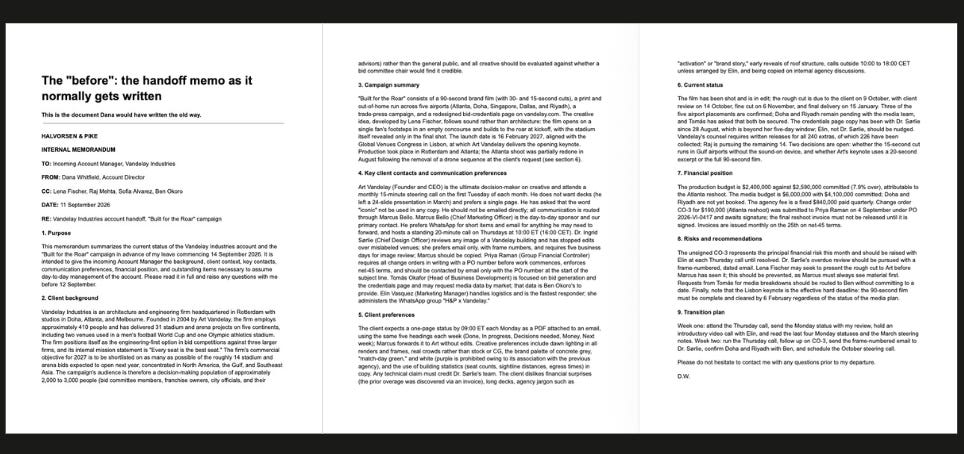
Remember when your only option was drafting and sending a long document. Something like this memo:
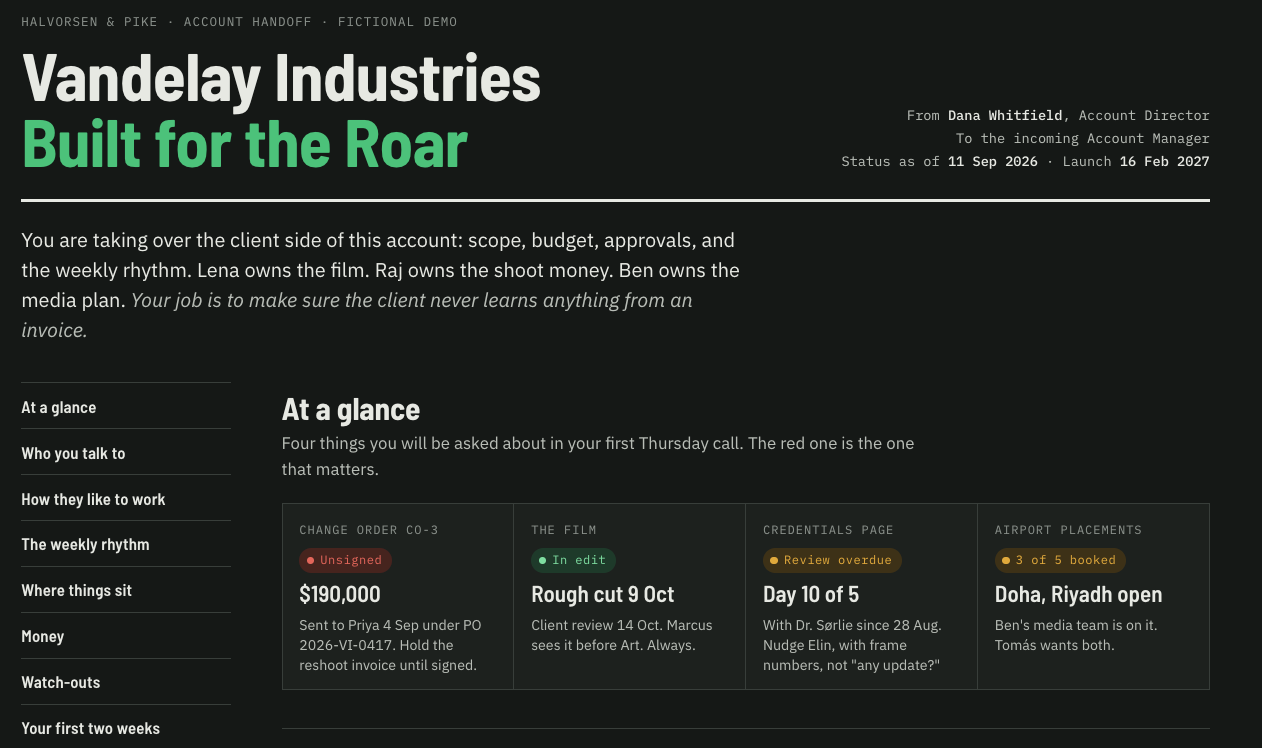
Artifacts (Claude). Ask the Claude app, whether chat, CoWork or my favorite, Claude Code, for something bigger than a paragraph and it builds the result beside the chat, a document, a diagram, a single-page website, a small interactive app. Click Publish and, in Anthropic’s words, “anyone with the link can view and interact with it,” no account needed. On Team and Enterprise plans the link stays inside your organization. Claude Code, the version that runs in a terminal, publishes the same kind of page to a private address by default and keeps every version. Here is what Claude built for this project. Click it and view it like a new colleague.
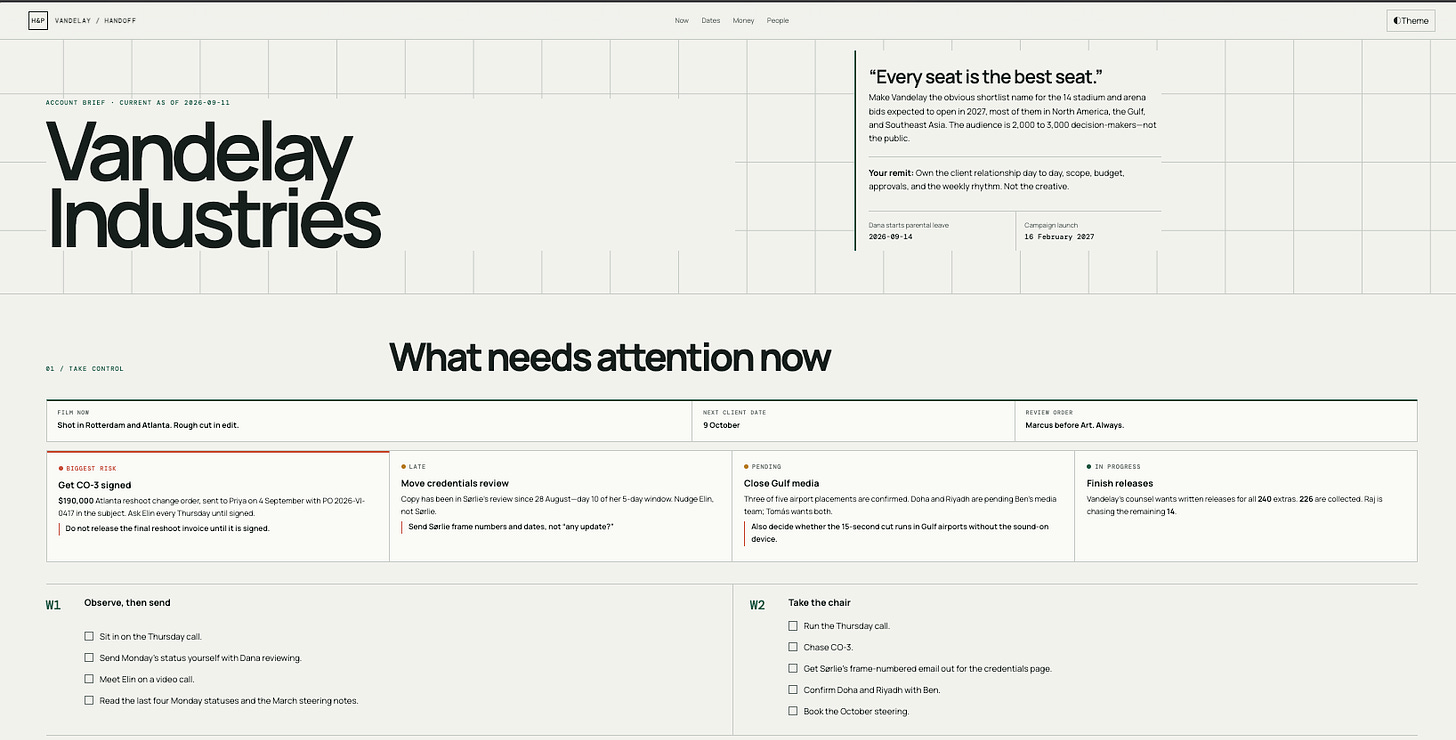
Sites (ChatGPT). In public beta since July on Plus, Pro, Business, Enterprise, and Edu. In the Work area of ChatGPT, or in Codex, say “website” or type @Sites. You can also find it in the … “more” drop down. ChatGPT builds a page you preview privately, then deploy to an address like https://vandelay-account-handoff.[username].chatgpt.site. The username portion is why I did not share the url here. However, for internal work, this isn’t an issue. So make a decision that works for your security posture.
Private versus public. Both tools default to the smallest audience, and both treat going live as final. My rule is simple. A page with client names and budget numbers stays inside the workspace, and it never goes public.
Keep this: A page with its own URL now costs the same as a memo, and the sharing switch is the first thing you set.
Use: do this on real work this week
The client handoff. Someone joins your team and needs the account in their head by Monday. Who they talk to, what the client likes and hates, where every piece of work sits, the money, the risks, the first two weeks. You normally write a two or three page memo. It is accurate, and it gets read once.
For this issue I invented an account so you can see the whole thing. An advertising agency is handing a new account manager the Vandelay Industries account, a firm that designs sports stadiums, in the middle of a campaign launch. Every name and number is made up.
Before you start. Check your company’s policy on what can go into the tool, and keep the page inside your workspace.
Now Go Do it
1. Think first. Write the headings the new person needs, then the facts under each, in your own words, messy is fine. Who they talk to and how each person likes to be reached. What the client loves and what got the last agency fired. Where things sit, with dates. The money. The one risk that matters this month. The first two weeks. A small amount of time and it decides whether the page is any good.
Hot Tip: Use voice mode, either through the platform, or with a third party tool like Wispr Flow or my new favorite, SuperWhisper. Talking helps me think.
2. Run the prompt. Paste your notes under it. It follows the CRAFT method, context, role, action, format, tone, plus non-negotiables and sources. In ChatGPT, keep the word “website” so it builds a Site; in Claude, paste it unchanged.
Context: I am handing the [client] account to [name], who starts on [date] as account manager. My handoff notes are pasted below. They are the only source. The page will be shared with our account team only, never publicly.
Role: You are the outgoing account director writing for your replacement.
Action: Build a single website page from my notes that the new account manager can open on day one and use for the first month.
Format: Eight sections in this order, with a section menu at the top. At a glance, the four things they will be asked about first, each with a status. Who you talk to, one card per client contact with what they care about and how to reach them. How they like to work, likes and dislikes side by side. The weekly rhythm. Where things sit, with dates and open items. Money, as a table. Watch-outs, numbered in priority order. First two weeks, as a checklist. Short sentences. Readable on a phone.
Tone: Plain and direct, written for a senior colleague. No jargon.
Non-negotiables: Use only the notes below. If a fact is not in my notes or is ambiguous, ask me a question before you build; do not fill gaps. Keep every name, number, and date exactly as written.
Sources: my handoff notes, pasted below this line. [Or attached if you prefer]
3. Read it as the new team member. Open the preview and read it once as the person arriving Monday. Ask for changes in plain words, such as “put the unsigned change order at the top” or “make the money a table.” Iteration is normal.
Both allow you to edit in plain language.
Here is how it looks in ChatGPT.
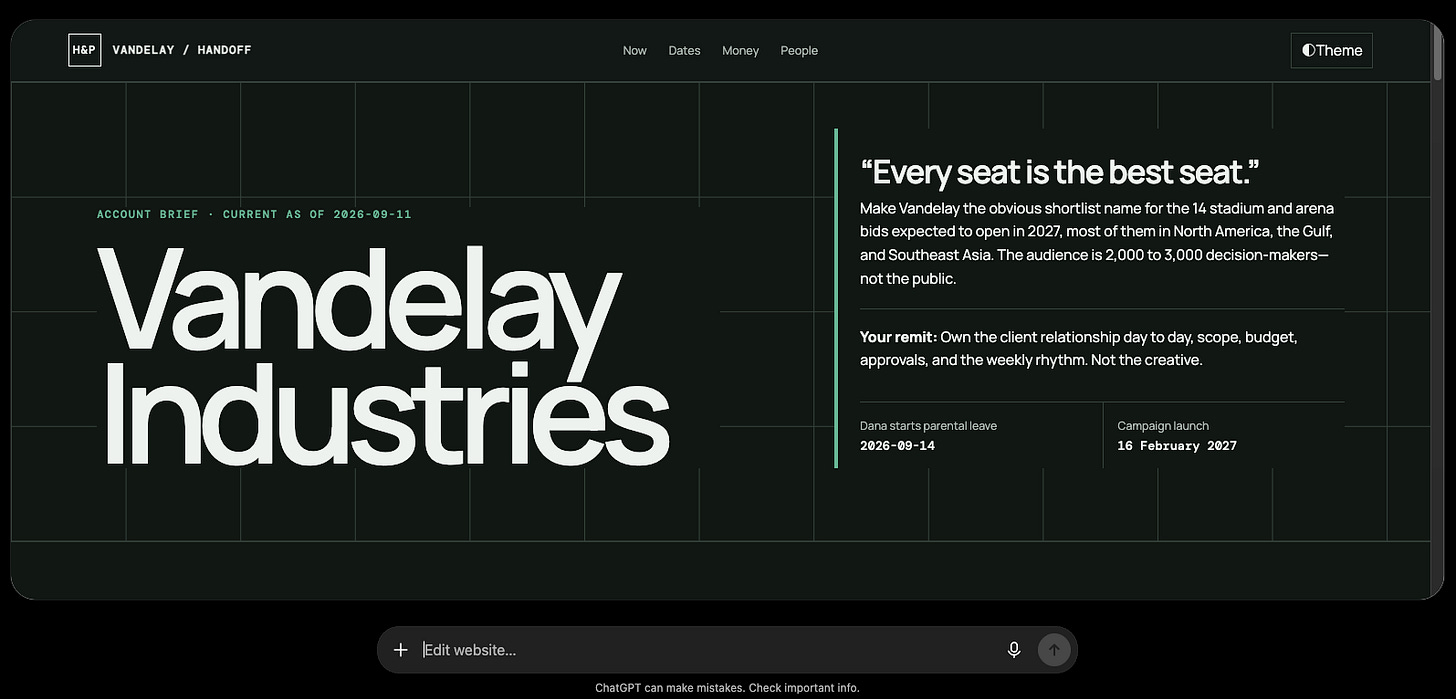
4. Set the audience, then send the link. In Sites, Share, then Who has access, then selected people or your workspace. In Claude, Publish for a link, or share inside the organization on a team plan.
Open the finished Vandelay handoff page, built in Claude from the same notes.
Check it. Expect it to be wrong somewhere, and expect the wrong places to repeat:
-
It will invent a preference you never wrote down. Every sentence traces to a line in your notes, or it goes.
-
It will flatten the one risk that matters into a bullet among six. You put it at the top.
-
It will swap a title or reverse who reports to whom. Names are where it slips most.
The clock: A small amount of your time thinking, a few more minutes for the machine, and the new team member now has a guide they can actually use. Less than the memo took, and the colleague opens it more than once.
Keep this: the page is only as good as the thinking you handed the machine.
Build: something you can keep
Three rungs.
Rung 1, this week. Save the prompt as a skill named “Handoff page.” On Claude, ask it to save the prompt as a skill; on ChatGPT Work or Codex, call the skill-creator. If skills have not reached your platform, save it as a named prompt.
Rung 2, next week. Keep the page alive. When Monday’s status changes a date or a number, update the page instead of sending a new memo. The account gets one address, and the new person stops asking which email was current.
Rung 3, when you are ready. Mastered the first version. Start adding dynamic data, like databases, and your page becomes a living breathing artifact.
Keep this: the prompt becomes a skill, and the page becomes the account’s home.
This week, in order
-
Pick one handoff you owe someone, or one you received as a memo.
-
Write the headings and facts by hand before you open the chat.
-
Build the page in Sites or Claude, set sharing to your team, send the link.
-
Reply and tell me which tool you used, and where it broke.
Building so you learn where it breaks is the whole skill. Same time next Friday.
Get the next one on Friday.
Applied AI for professionals, by Sal Carranza. One workflow a week, free.